AI-generated page. This page was automatically generated from a source and a project page and may contain inaccuracies or outdated information. Please verify details with the original source.
ArmadaLive
A dual-screen companion app that shows the game you are playing and system controls on the AYN Thor's bottom screen under Armada OS.
Description
ArmadaLive is a companion app for the AYN Thor's bottom screen on Armada OS, for ES-DE and Steam / Big Picture. Whatever you scroll through or play on the top screen, the bottom screen shows it: the game's logo and background, its manual and cheats. Next to that it holds the Thor's controls: power profiles, fan curves, brightness, volume, quick settings and an app grid. It is a native Qt app that runs full screen in the bottom Plasma session, never draws over your game, and the AYN button always brings it to the front.
It is an independent re-creation that follows the idea and the look of AYN's Android companion app, and uses none of its code or assets.
Features
- Game – the game in front with logo and background; it knows about the game ES-DE has selected or started, running emulators (RetroArch, Eden, Azahar, Cemu, ARMSX2, Dolphin, PPSSPP, RPCS3, xemu, DuckStation, Vita3K and more), Steam games, and the app you are highlighting in Steam Big Picture. Artwork comes from ES-DE's
downloaded_mediaand Steam's own library cache. - Manual and Cheats – the game's PDF manual from ES-DE's media and cheats from your RetroArch cheats folder, each only shown if the current game has it.
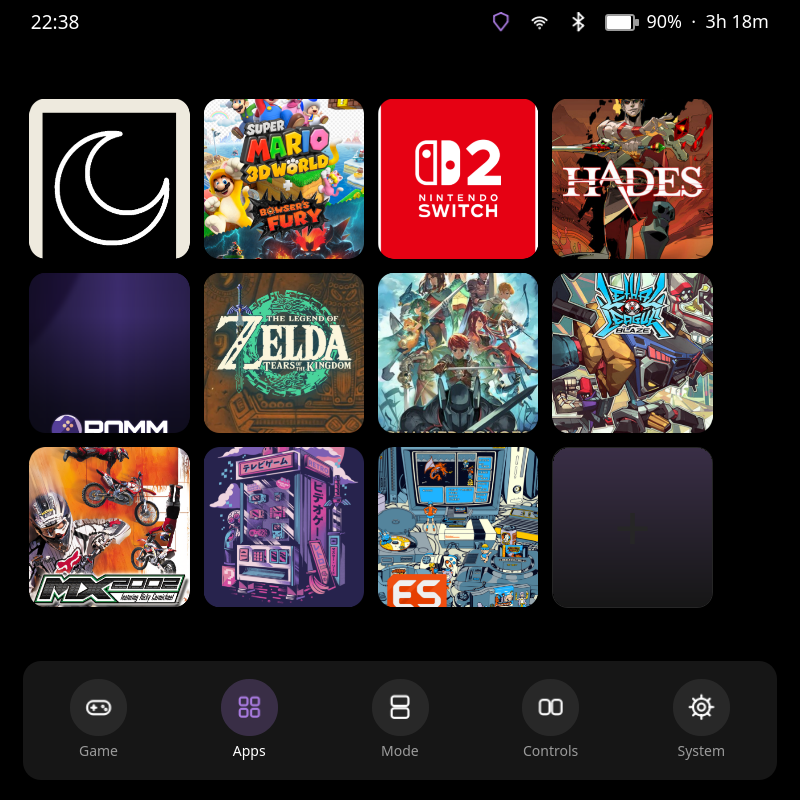
- Apps – a 3×3 grid of apps you choose; they open on the bottom screen.
- Mode – brightness of both screens and the stick LEDs, volume.
- System – FPS, a 60/120 FPS limit, quick settings (power profile, fan curve, clear RAM, stick LEDs, Wi-Fi, Bluetooth, airplane mode, sound, screenshot, GPU clock, screen off), temperature, fan, and gauges for CPU, GPU, power and RAM.
- Graphs – FPS, CPU, temperature, power and battery over the last two minutes.
- Game rule and System rule – remember the current power profile and FPS limit for the game in front, or for its whole system, and apply them the next time that game starts.
- Wi-Fi saver – switches Wi-Fi power saving off or on.
- Resolution tile – for PPSSPP, Dolphin (GameCube, Wii) and ARMSX2 (PS2) steps the game's render resolution through off, 1×…5×.
- Add to Steam – adds the game in front to Steam's library as a shortcut with its ES-DE artwork.
- Keyboard – shows the on-screen keyboard of the bottom screen and keeps it up until you tap it again.
- Tailscale – switches Tailscale on or off, with a shield in the status line while connected.
- Heat warning – a popup when the device reaches 80, 85 or 90 °C, with the power profile that is running.
- Media bar – when something plays on the main screen (anything that speaks MPRIS), a bar with title, previous, play/pause and next.
- Close game – hold Start + Select for two seconds to close the program in front (an emulator, ES-DE or a Steam game, never Steam itself).
- Tuning – CPU governor, underclock, GPU limits and a draggable fan-curve editor for each power profile.
- Settings – a health check, English or German, eleven themes with accent colours (including a Follow game theme that takes its palette from the artwork of the game in front), a low-battery warning, an optional charge limit (80 or 90 %), a one-file backup, logo animation on or off, in-app updates, and Setup.
Setup guide
Open a terminal on the Thor (Konsole, or SSH) and run:
curl -L https://github.com/FabianZettl/armadalive/releases/latest/download/armadalive.tar.gz | tar xz
cd armadalive
./install.sh
That installs ArmadaLive for your user only, no root needed, and starts it. It runs as a user service, starts at login and adds an ArmadaLive entry to the app menu.
Then open ArmadaLive → Settings → Setup. The root helper (fan curves, profile tuning, stick LEDs, Clear RAM) and the AYN button are installed and activated right there: tap Install or Set up, type your password, done. No terminal needed.
Optional steps:
- ES-DE events – in ES-DE press START, open Other Settings and turn on Custom Event Scripts and Browsing Custom Event Scripts, then leave the menu so ES-DE saves. Without this, ArmadaLive still sees running emulators and Steam, but not what you scroll through in ES-DE.
- Steam Big Picture highlighting – ArmadaLive reads the highlighted app from Steam's local debug port, which is only open while
~/.steam/steam/.cef-enable-remote-debuggingexists (Decky Loader creates it). Without it, ArmadaLive still follows Steam games that are running. - Tailscale tile – the tile can only switch Tailscale if your user is its operator: run
sudo tailscale set --operator=$USERonce.
Update: Settings → Check for updates → Install update. Uninstall: ./install.sh --uninstall, plus sudo scripts/install-helper.sh --remove and sudo scripts/ayn-button.sh --remove if you installed those.
Known issues
- The 60/120 FPS pill sets gamescope's frame limit; the panel's refresh rate stays at 120 Hz.
- Which brightness slider belongs to which screen is an assumption (DSI-1 is the bottom panel, DSI-2 the top one).
- The Wi-Fi, Bluetooth and airplane tiles were not switched during development.
- Staying full screen relies on Plasma Mobile hiding its panels; its swipe-up gesture should bring them back.
- Steam Big Picture selection depends on Steam's internals and can break with a Steam update.
- A window that you close is only hidden; the AYN button brings it back.
- No screen-mode switching (dual, top only, bottom only, swap) is implemented.
- Close game reads the controller directly and only works while ArmadaLive is running; emulators that ignore the polite quit are killed after three seconds, so unsaved progress is lost.
- The Wi-Fi saver setting is dropped by the kernel when Wi-Fi reconnects.
- The resolution tile edits the emulators' own config files; Azahar is not supported.
- Follow game uses the game's artwork, not the theme of the top screen.